User Guide
Step-by-step: register, choose products, order, pay, and pay by installments (partial payments until fully paid), including your balance and due date.
Installment payments are available to signed-in members only.
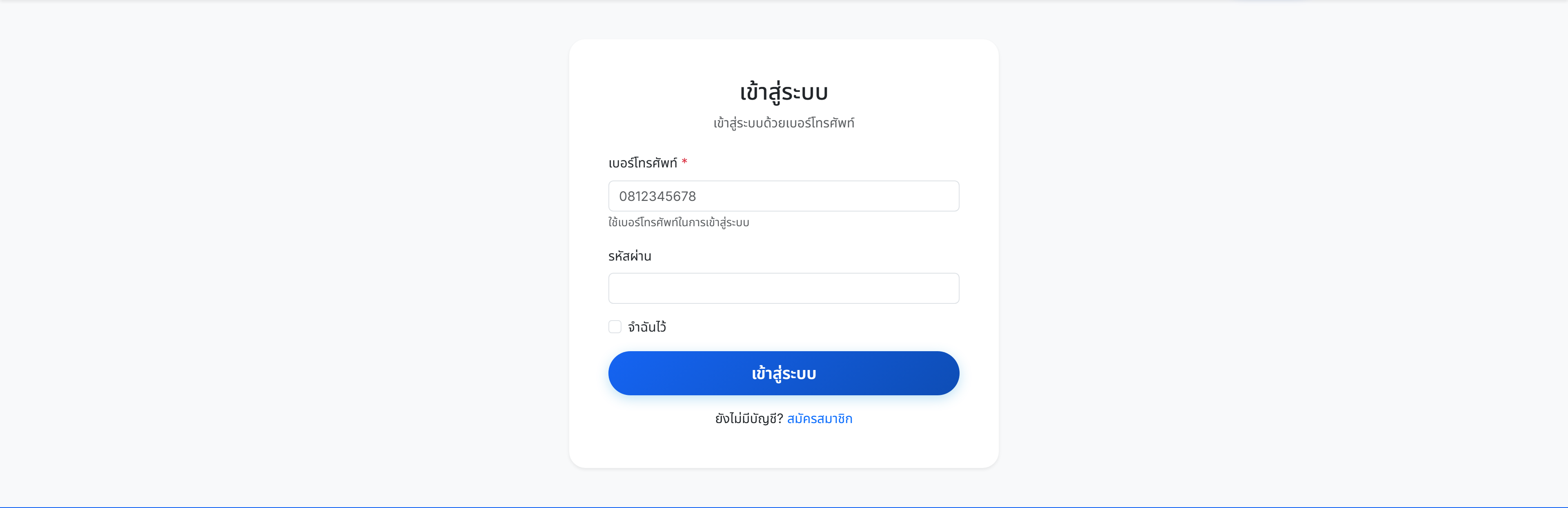
1Register / Sign in
- Click "Sign in" at the top right.
- Enter your phone number (username) and password.
- Optionally tick "Remember me", then click "Sign in".
- No account? Click "Register" below to create one.
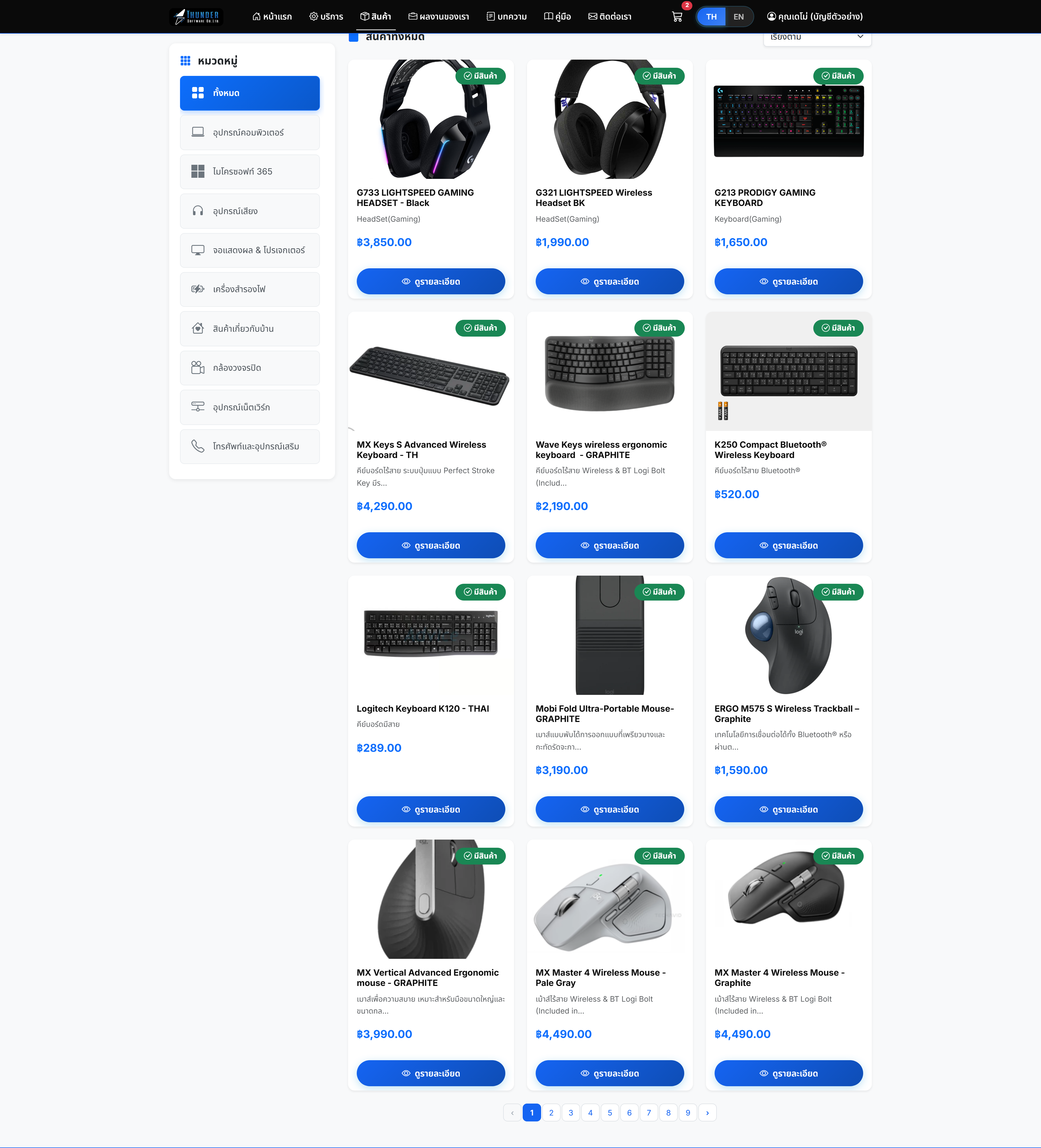
2Choose products & add to cart
- Go to "Products" to browse all items.
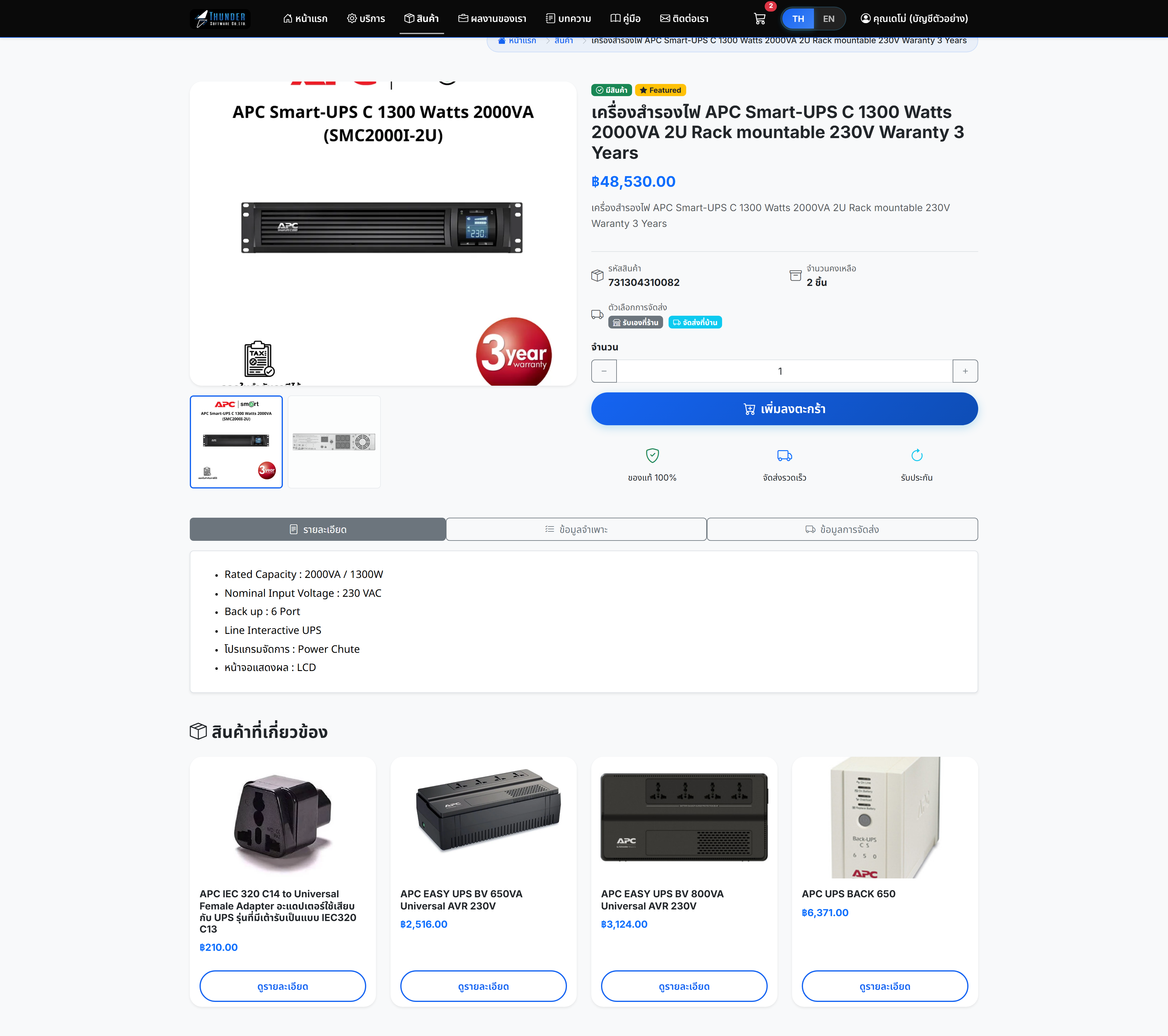
- Click a product to view details and price.
- Select quantity, then click "Add to cart".
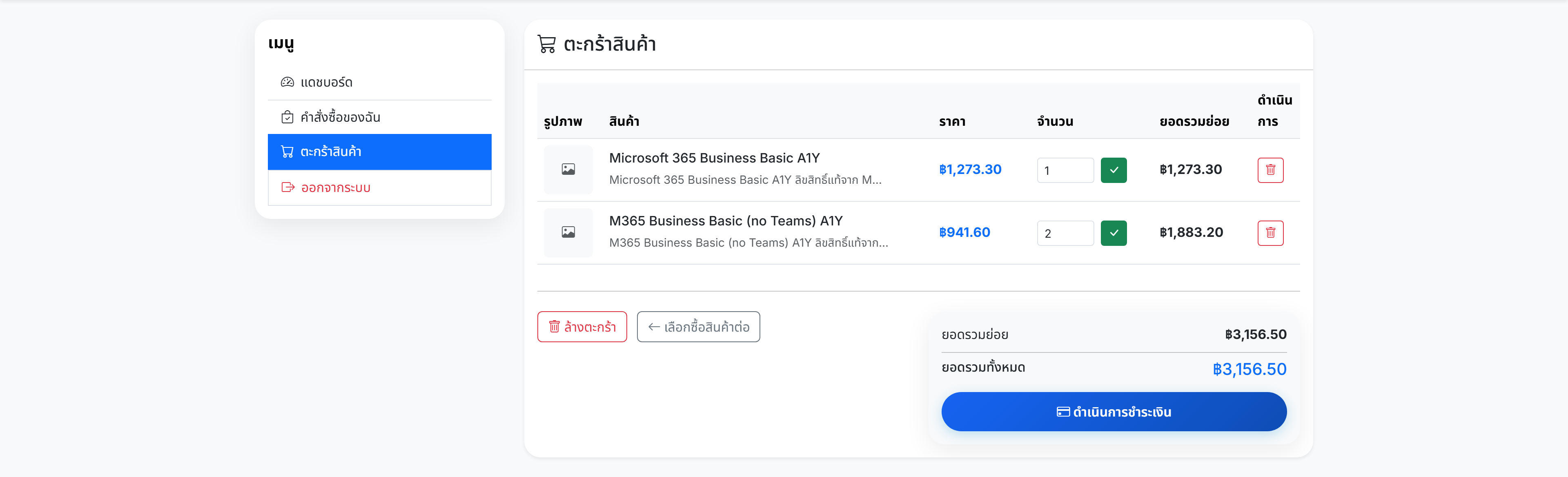
3Review cart & checkout
- Click the cart icon (top right) to review your items.
- Adjust quantity or remove items, then click "Checkout".
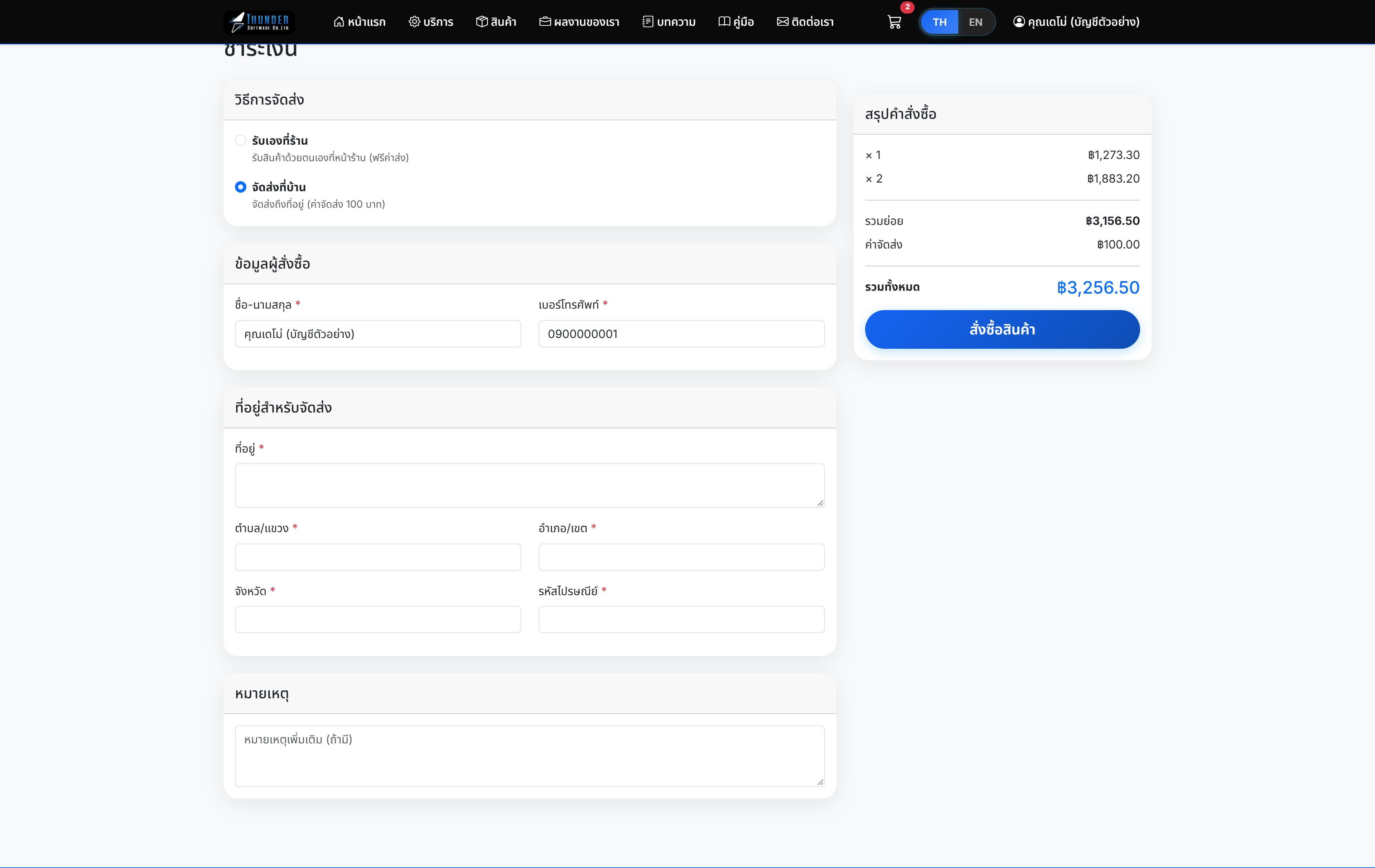
- Fill in recipient & shipping info, review the total, then confirm the order.
4Choose: pay in full or installments
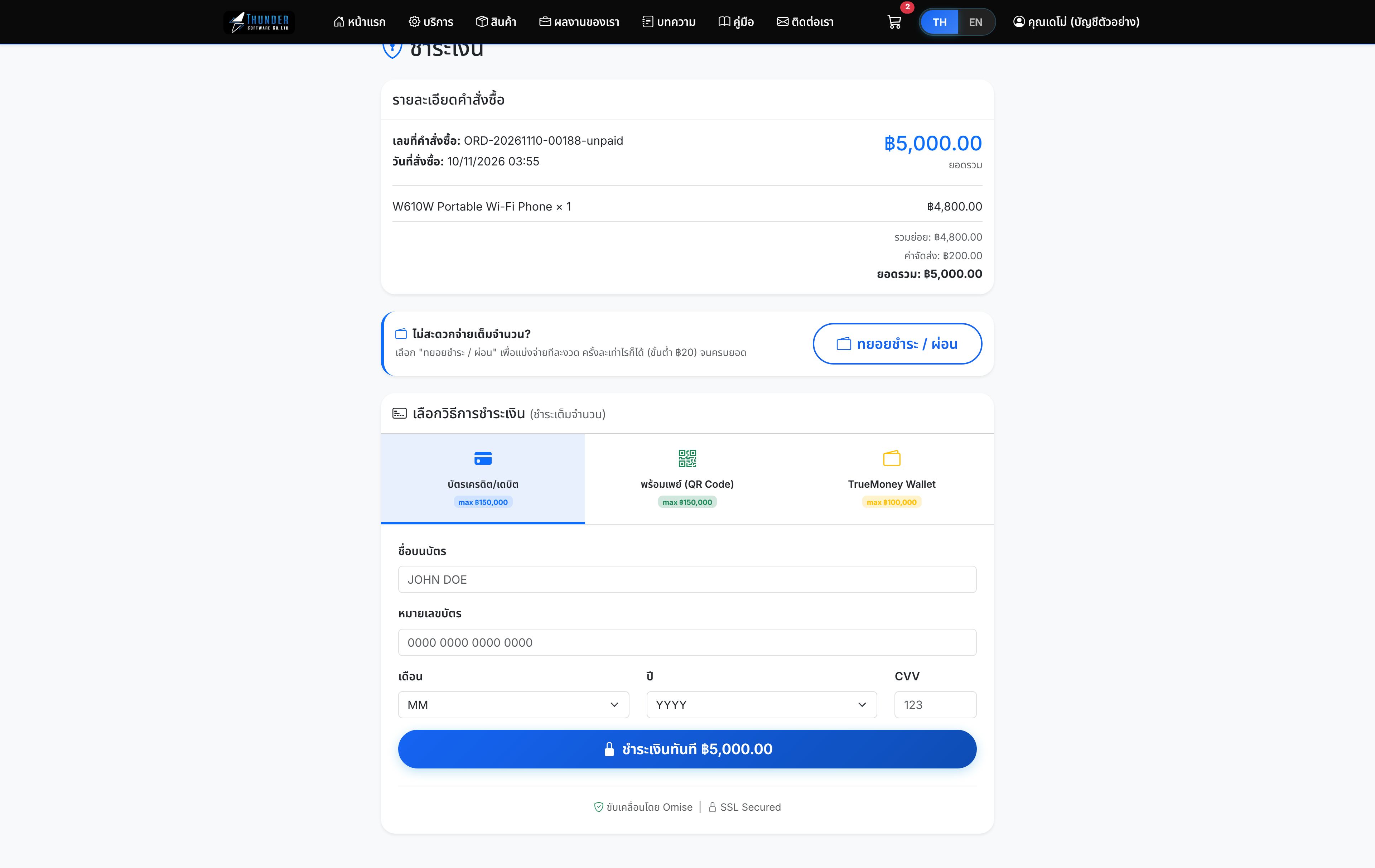
After confirming, you reach the payment page with two options:
- Pay in full — card, PromptPay (QR) or TrueMoney, all at once.
- Installments — click "Pay by installments" in the blue box to split into partial payments.
5Pay by installments
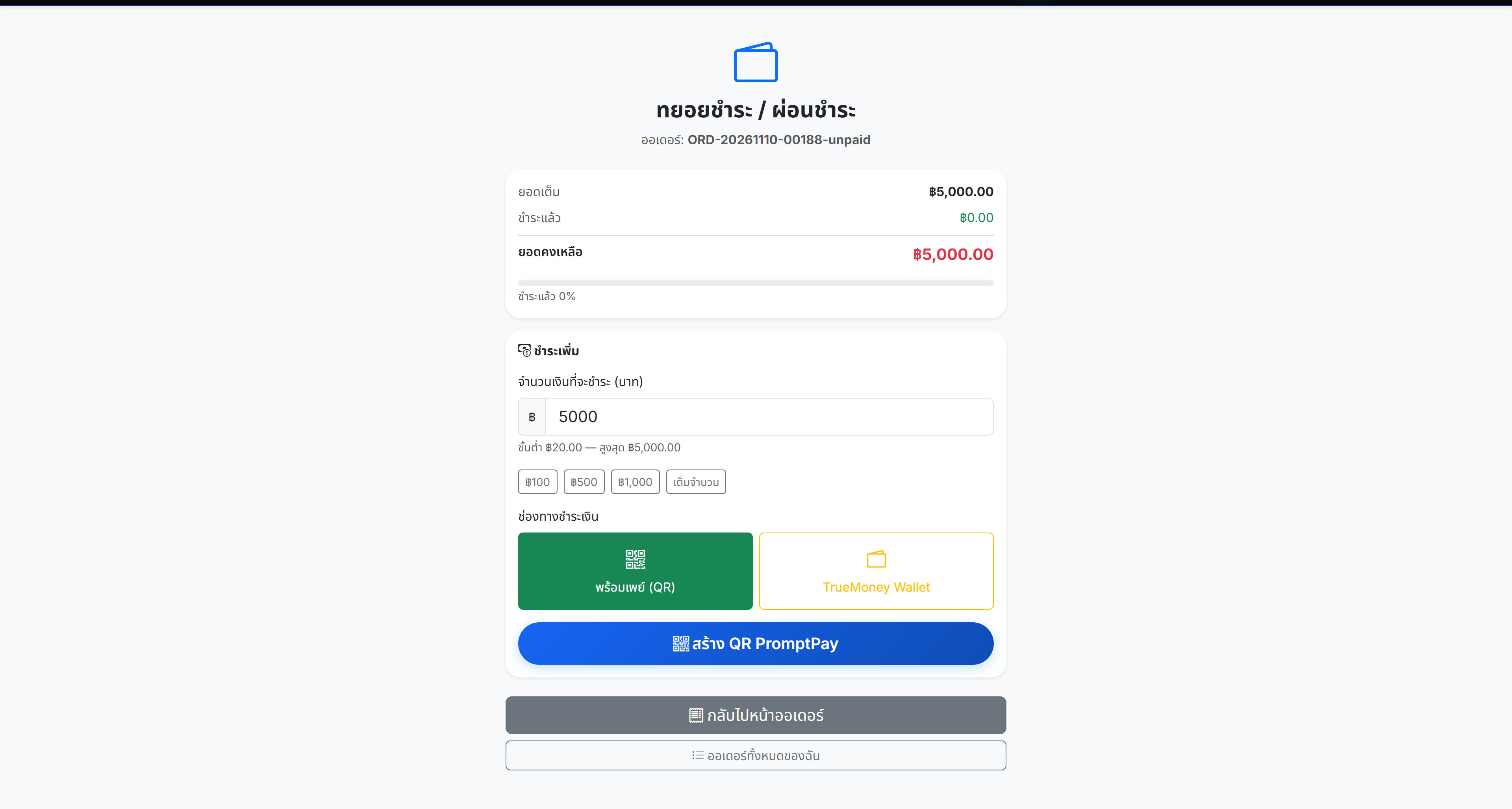
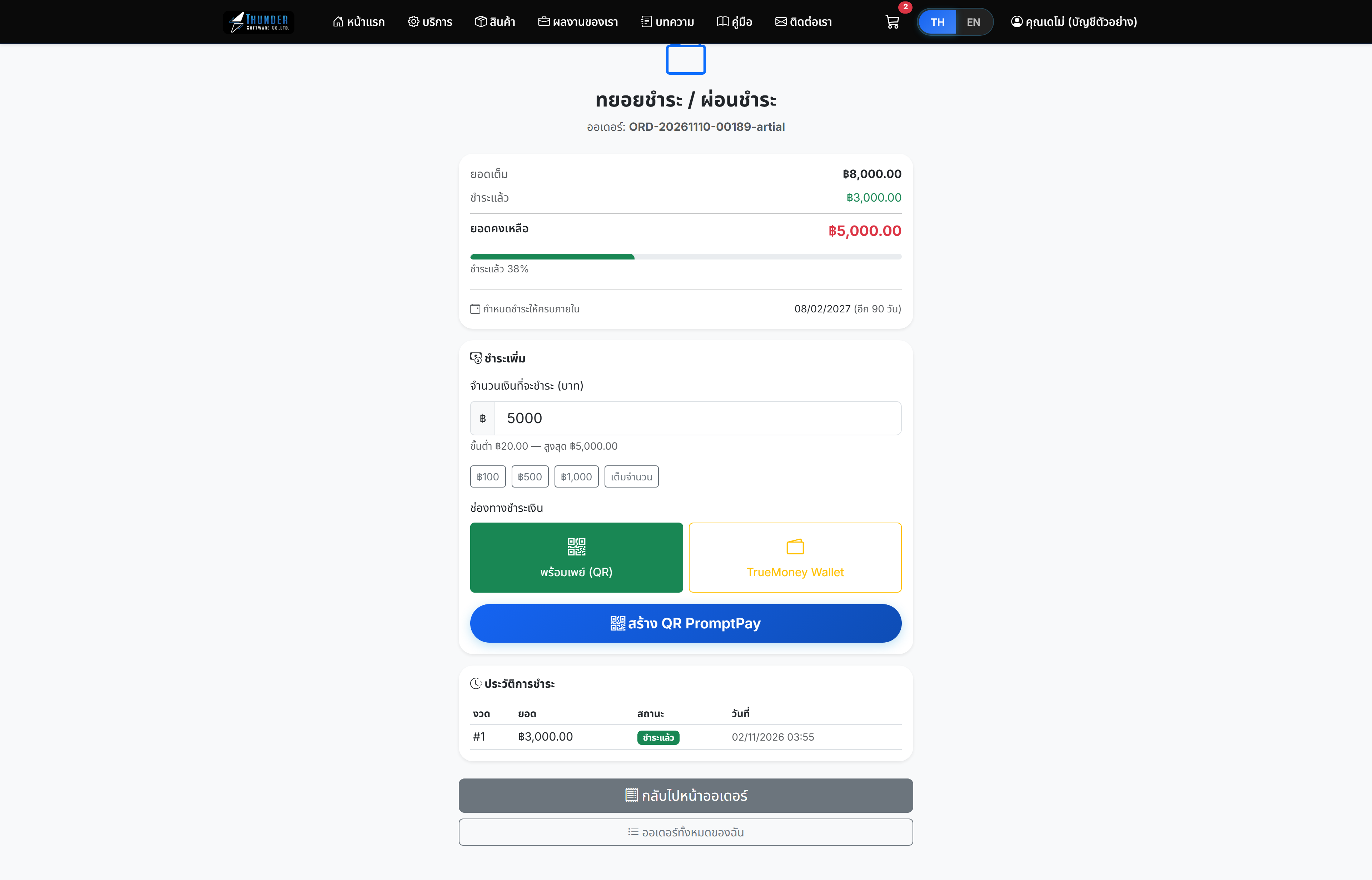
On the installment page:
- Check total / paid / outstanding and the progress bar on top.
- Enter the amount to pay (min ฿20, up to the balance) or use the quick buttons.
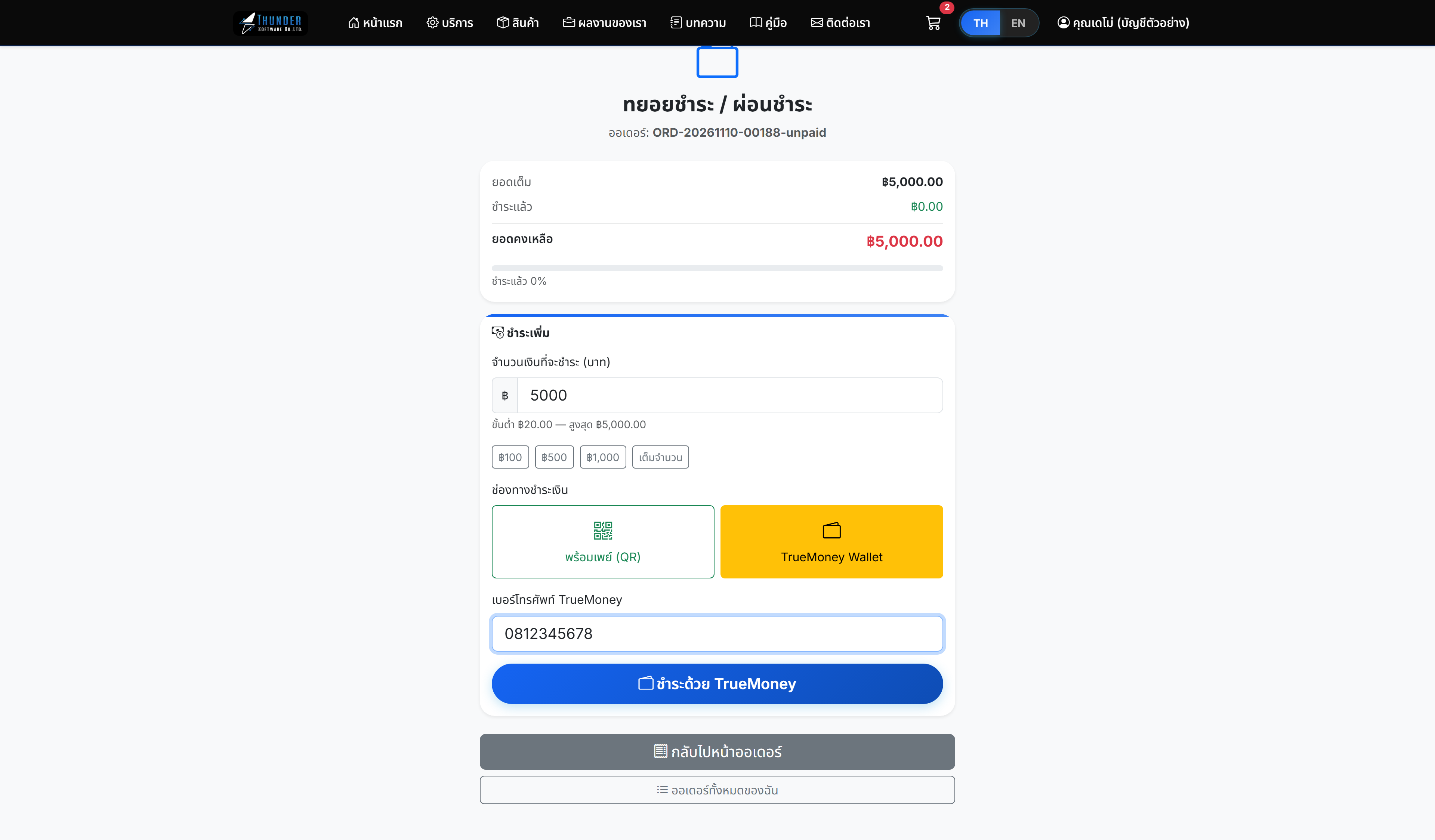
- Choose a method: PromptPay (QR) or TrueMoney Wallet.
- If TrueMoney, enter your TrueMoney phone number.
- Click the button to generate QR / confirm. After paying, the balance decreases immediately.
- Repeat anytime, any amount, until the balance reaches 0.
[ PromptPay QR page — scan to pay ]
images/guide/05-qr.png
Pay anytime, any amount, until the balance is 0. Once complete, the order becomes "Paid" automatically.
6View balance & due date
- Go to "My orders" and open an order.
- See total / paid / outstanding and the due date (90 days from order date).
- Click "Pay by installments" to pay more anytime.
- If overdue, an "Overdue" badge appears, but you can still pay.
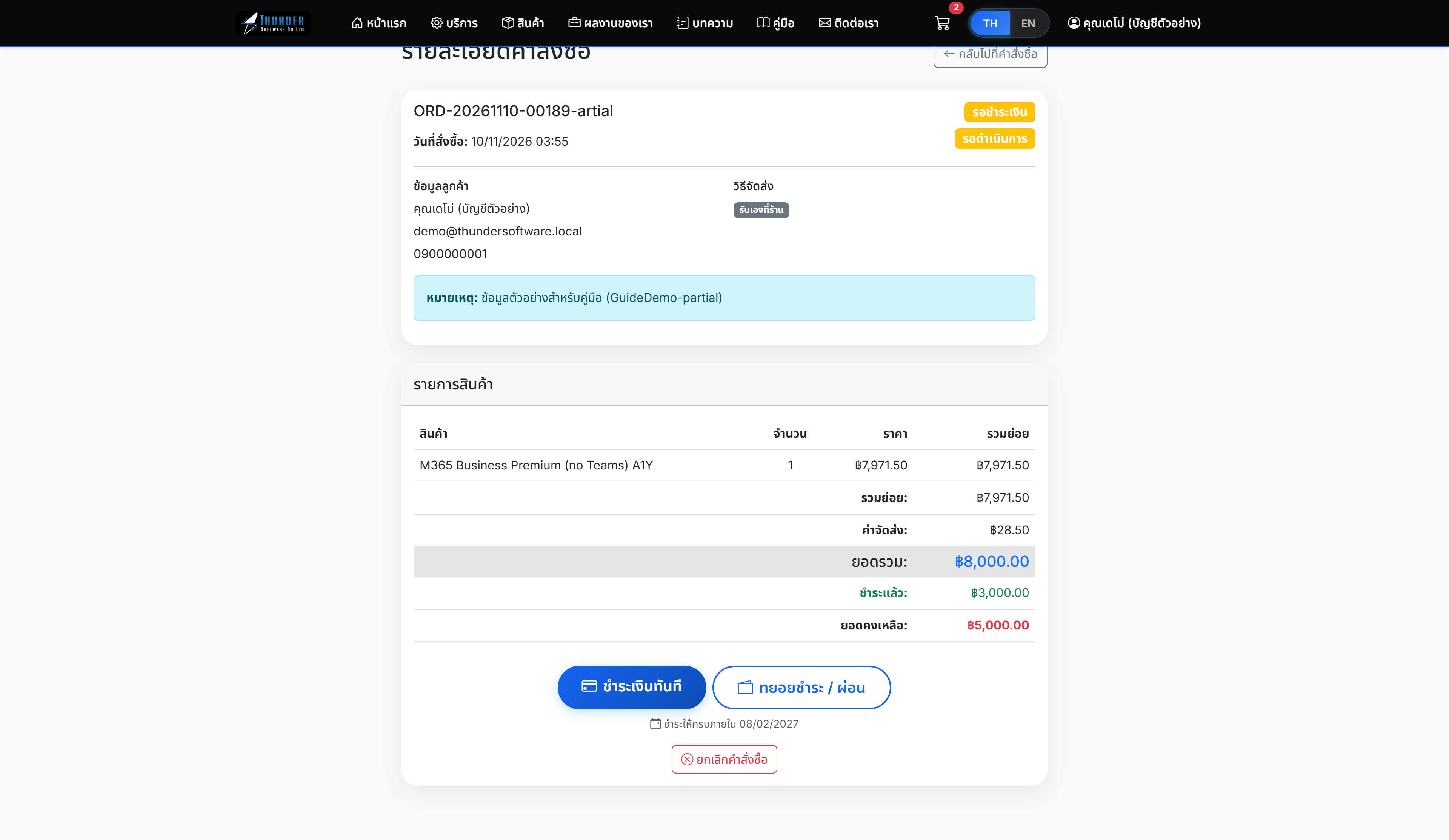
Please complete payments before the due date. If overdue, a notice is shown (payment is not blocked).
FAQ
Minimum ฿20 per payment, up to the outstanding balance. Pay as many times as you like until fully paid.
Within 90 days of the order date. If overdue, a notice appears but you can still pay.
Yes, each payment can independently use PromptPay (QR) or TrueMoney Wallet.
Wait a moment and refresh. It updates once the payment provider confirms. If not, contact the shop.
No, you must sign in with a member account to use installments.